
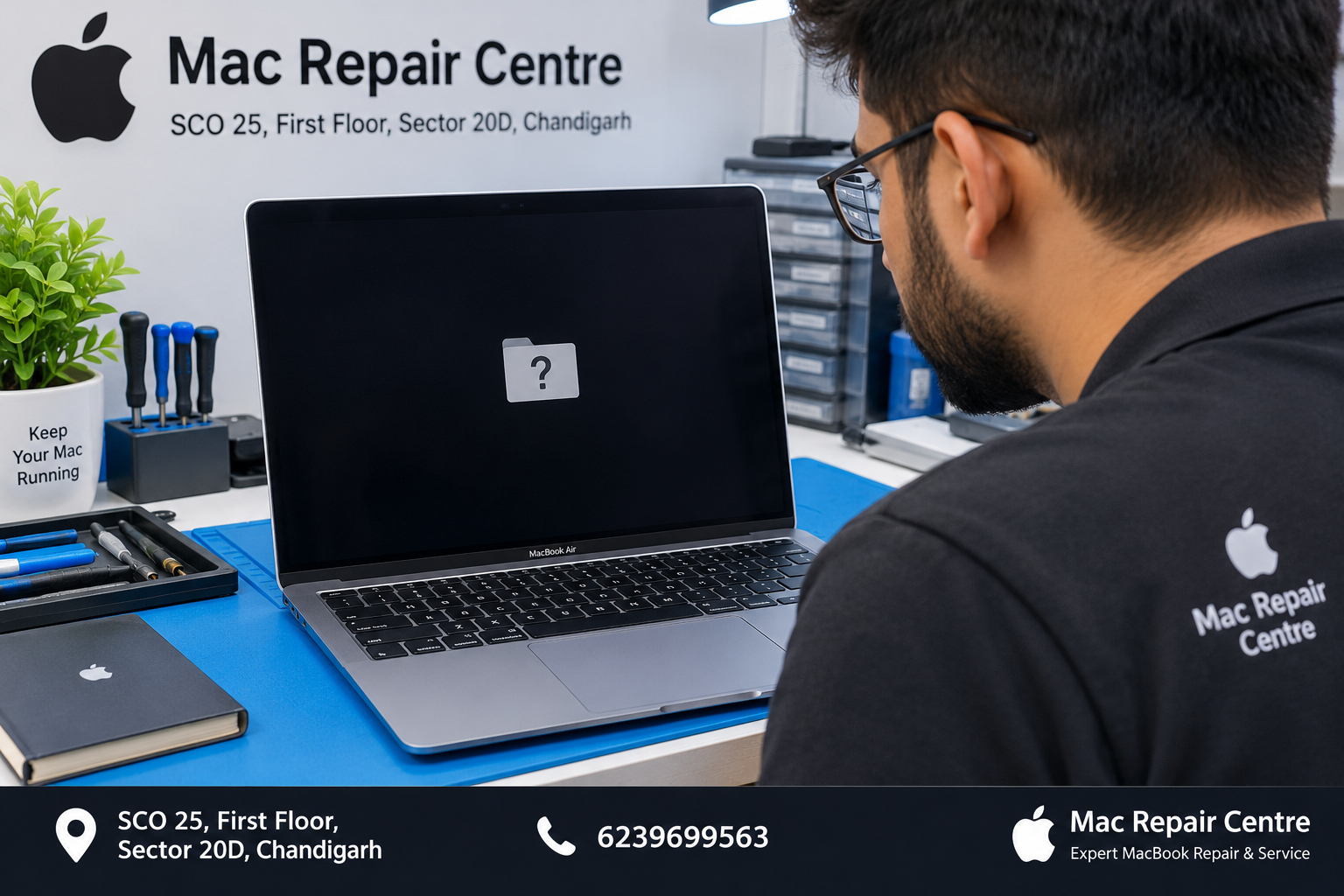
MacBook question mark folder
Introduction
Have you turned on your MacBook only to see a folder with a question mark on the screen? This can be confusing, especially when you need your laptop for office work, business, studies, or important files.
The question mark folder usually means that your Mac cannot find a valid startup disk or the operating system it needs to start. In some cases, the issue can be resolved through macOS Recovery. In other situations, it may indicate a problem with the internal storage, its connection, or another hardware component.
The good news is that seeing this symbol does not automatically mean your data is lost or that you need to replace your MacBook.
In this guide, we will explain what the question mark folder means, why it appears, what you can safely try at home, and when professional MacBook diagnosis may be necessary.
1. What Does the Question Mark Folder Mean on a MacBook?
The question mark folder is a startup warning displayed when a Mac cannot locate a usable startup disk.
Your MacBook needs a valid startup volume containing macOS to boot normally. If it cannot locate that volume, it may display a folder with a question mark instead of loading the desktop.
Common reasons include:
macOS is missing or damaged.
The startup disk cannot be found.
The internal SSD or storage system has developed a fault.
The startup disk is not correctly selected.
A macOS installation or update did not complete successfully.
A hardware or firmware-related problem is preventing startup.
The exact cause depends on the MacBook model, its age, and what happened before the error appeared.
Important: Do not immediately erase or format the disk. If your MacBook contains important files, protect the data before attempting any operation that could remove it.
2. Common Reasons a MacBook Shows a Question Mark Folder
A. macOS installation problems
Sometimes macOS becomes unavailable after an interrupted installation, an unsuccessful update, or a problem with the system volume.
If the internal storage is healthy, reinstalling macOS may resolve the problem. However, first confirm that the Mac can detect its startup disk and that your important data is protected.
B. Internal SSD or storage failure
If your MacBook cannot detect its internal storage, it may not have a usable startup disk.
Possible symptoms include:
A question mark folder appearing at startup.
The internal disk missing from Disk Utility.
The Mac repeatedly returning to the startup screen.
Earlier freezing, restarting, or startup failures.
A missing disk does not always mean the SSD itself has failed. Diagnosis may also need to consider the storage controller, power delivery, logic board, or other related hardware.
C. Incorrect startup disk selection
Your Mac may have more than one available startup volume, such as an external drive and its internal storage.
If the wrong startup volume is selected or the expected volume is unavailable, the Mac may fail to boot.
Checking Startup Disk settings or selecting the correct startup volume in macOS Recovery can sometimes resolve this issue.
D. Interrupted macOS update
If your MacBook loses power or an installation fails during an update, system files may become unavailable or the startup process may be interrupted.
Do not assume every failed update requires a new SSD. The startup disk and macOS installation should be checked before deciding on a repair.
E. Hardware or logic board problems
In some cases, the problem may involve the internal storage interface, logic board, or another component required for startup.
This possibility becomes more important if the MacBook also has charging problems, liquid damage, unexpected shutdowns, or a history of physical damage.
Professional diagnosis can help determine whether the issue is software-related or requires hardware repair.
3. What Should You Do First?
Before trying advanced troubleshooting, follow these basic precautions.
Step 1: Disconnect unnecessary accessories
Disconnect external drives, USB hubs, memory cards, and other accessories. Leave only the power adapter connected if charging is required.
A connected external device can occasionally affect startup behaviour.
Step 2: Restart your MacBook once
If the Mac is displaying the question mark folder, shut it down using the available power control and try starting it again.
Avoid repeatedly forcing restarts if the same error continues.
Step 3: Check whether the error remains
If the question mark folder appears again, proceed to the appropriate startup recovery steps for your model.
Step 4: Protect your data
If you have important files that are not backed up, avoid erasing the disk, partitioning it, or experimenting with disk-repair commands. Consider professional data recovery or diagnosis before making changes.
4. How to Enter macOS Recovery
The steps differ depending on whether your MacBook uses Apple silicon, such as an M1, M2, M3, M4, or a later chip, or an Intel processor.
For Apple silicon MacBooks
Shut down your MacBook.
Press and continue holding the power button.
Release it when the startup options screen appears.
Select Options, then click Continue.
If requested, select a user account and enter the necessary password.
From macOS Recovery, you can access utilities that help diagnose startup problems.
For Intel-based MacBooks
Shut down your MacBook.
Turn it on and immediately press and hold Command (⌘) + R.
Continue holding the keys until the Apple logo or macOS Recovery screen appears.
Follow any instructions shown on the screen.
The available recovery options depend on your model and installed firmware. If these steps do not work, further troubleshooting may be necessary.
5. Check the Startup Disk in macOS Recovery
Once you enter macOS Recovery, check whether the internal storage is visible.
Using Disk Utility
Open Disk Utility from the Recovery utilities window.
Choose View > Show All Devices, if that option is available.
Look for the internal storage device and its volumes.
Check whether the expected startup volume is present.
If the startup volume appears, you may be able to select the appropriate startup disk or run First Aid, depending on the condition of the disk.
However, First Aid is not a substitute for data recovery and cannot fix every hardware failure.
What if the internal SSD is missing?
If the internal storage does not appear in Disk Utility, do not immediately erase or reinstall macOS.
The cause could be a storage-related hardware fault or another issue preventing the disk from being detected. A qualified technician should investigate before recommending a component replacement.
6. Can Reinstalling macOS Fix the Question Mark Folder?
Yes, reinstalling macOS can help when the problem is related to missing or damaged system files and the startup storage is otherwise working correctly.
However, reinstalling macOS is not guaranteed to fix the problem.
Before proceeding:
Back up your files if possible.
Confirm that the internal startup disk is detected.
Follow the correct instructions for your MacBook model.
Make sure you have a reliable internet connection if the installer requires one.
Reinstalling macOS through Recovery is generally designed to preserve personal files, but no procedure is completely risk-free. If the data is important and you do not have a backup, seek professional advice first.
Do not select Erase, Format, or other destructive options unless you understand the consequences and have secured the data you need.
7. What If the Question Mark Folder Keeps Appearing?
If the same error returns after restarting or attempting appropriate recovery steps, further diagnosis is recommended.
Potential causes include:
A damaged or inaccessible startup volume.
An unsuccessful macOS installation.
An internal SSD or storage-system fault.
A logic board or power-related issue.
A firmware or startup configuration problem.
The correct repair depends on the actual cause. Replacing the SSD or logic board without diagnosis can lead to unnecessary expenses.
A repair technician may inspect the storage device, startup behaviour, power conditions, and other relevant components to identify the fault.
8. Is Your Data Safe When the Question Mark Folder Appears?
Not necessarily, but the symbol alone does not prove that your data has been lost.
If the MacBook cannot find a startup disk because of a software issue, the files may still be present on the internal storage. If the storage hardware has failed, recovering the data may be more difficult.
For Apple silicon and many newer MacBook models, internal storage is integrated into the system architecture, and data recovery can depend on the condition of the storage, encryption, and other components.
If your MacBook contains business documents, customer records, photographs, or other important information, avoid experimenting with erase or restore procedures before assessing the situation.
If the files are irreplaceable, prioritise data recovery over getting the MacBook working quickly.
9. How Much Does It Cost to Fix a MacBook Question Mark Folder?
The repair cost varies because the same startup warning can result from several different problems.
A software-related issue may require diagnosis and macOS recovery or reinstallation. A hardware-related issue may require more extensive troubleshooting or component-level repair.
Factors affecting the cost include:
MacBook model and year.
Whether it uses Intel or Apple silicon.
Condition and detection status of the internal storage.
Whether the problem is software-related or hardware-related.
Availability of replacement components.
Whether data recovery is required.
It is best to obtain a diagnosis and written estimate before approving a repair. A reliable service centre should explain the likely cause, available repair options, and any data-related risks.
Avoid relying on a single fixed price for all MacBook models because repair requirements can differ substantially.
10. How Can You Prevent Future Startup Problems?
Not every startup issue can be prevented, but a few habits can help reduce risk.
Keep a regular backup
Use Time Machine or another trusted backup method. A backup can be extremely valuable if your internal storage becomes inaccessible.
Avoid interrupting system updates
Keep your MacBook connected to a reliable power source during major macOS installations and updates.
Monitor unusual behaviour
Repeated freezing, unexpected restarts, or storage warnings may deserve attention before the MacBook stops starting.
Use reliable power accessories
Use compatible, reliable charging equipment and avoid exposing the MacBook to unstable power conditions.
Maintain enough available storage
Very low free storage can affect everyday operation and complicate updates. Keep sufficient space available for macOS and application requirements.
Seek help when symptoms persist
If the question mark folder repeatedly returns, get the startup disk checked instead of repeatedly restarting the laptop.
11. When Should You Visit a Professional MacBook Repair Centre?
You should consider professional diagnosis if:
Your MacBook repeatedly shows a question mark folder.
The internal SSD is not visible in Disk Utility.
macOS Recovery will not open.
Reinstallation fails repeatedly.
The MacBook recently suffered liquid or physical damage.
You have important files that are not backed up.
The MacBook was previously restarting, freezing, or failing to charge.
At Mac Repair Centre, SCO 25, First Floor, Sector 20D, Chandigarh, customers can seek assistance with MacBook startup issues, macOS troubleshooting, SSD-related faults, and logic board diagnosis.
The aim is to identify the actual cause before recommending a repair. Where important data is involved, discuss data-preservation options before authorising any procedure that could erase the drive.
Contact: 6239699563
Conclusion
A question mark folder on a MacBook usually means that the computer cannot find a valid startup disk. The cause may be a software issue, an incorrect startup selection, an unsuccessful macOS installation, or a hardware fault.
Start with the safe troubleshooting steps: disconnect unnecessary accessories, restart once, and enter macOS Recovery using the correct method for your model. Check whether the internal storage is visible before deciding what to do next.
If your important files are not backed up, avoid erasing or formatting the disk until the data situation has been assessed.
When the problem continues, professional diagnosis can help determine whether the MacBook needs software troubleshooting, storage repair, or further hardware investigation.
For MacBook startup and repair assistance in Chandigarh, contact Mac Repair Centre to discuss your model and symptoms.
Frequently Asked Questions (FAQs)
1. Why is my MacBook showing a folder with a question mark?
It usually means your Mac cannot find a valid startup disk or a usable macOS system to start the computer.
2. Does the question mark folder mean my SSD is damaged?
No. The problem may be caused by software, startup disk selection, storage detection, or hardware. Diagnosis is needed to identify the cause.
3. Can I fix the question mark folder at home?
Sometimes. You can disconnect accessories, restart the Mac, enter macOS Recovery, and check whether the startup disk appears. Avoid destructive disk operations if your data is not backed up.
4. Will reinstalling macOS delete my files?
A normal macOS reinstall is generally designed to preserve personal files, but no procedure is entirely risk-free. Back up your data if possible, and seek advice before proceeding if the files are important.
5. What should I do if my internal SSD does not appear in Disk Utility?
Avoid erasing or formatting the disk. The storage or another hardware component may need professional diagnosis.
6. Can a MacBook question mark folder be caused by a failed update?
Yes. An interrupted or unsuccessful update can cause startup problems, although other causes are possible.
7. Is professional repair necessary for every question mark folder issue?
No. Some software-related issues can be resolved through Recovery. Professional assistance is advisable if the error persists, the internal disk is missing, or data recovery is important.
8. Where can I get MacBook startup repair in Chandigarh?
You can contact Mac Repair Centre, SCO 25, First Floor, Sector 20D, Chandigarh, at 6239699563 for assistance with diagnosis