
MacBook Not Detecting SSD: Causes, Symptoms, and Repair Solutions
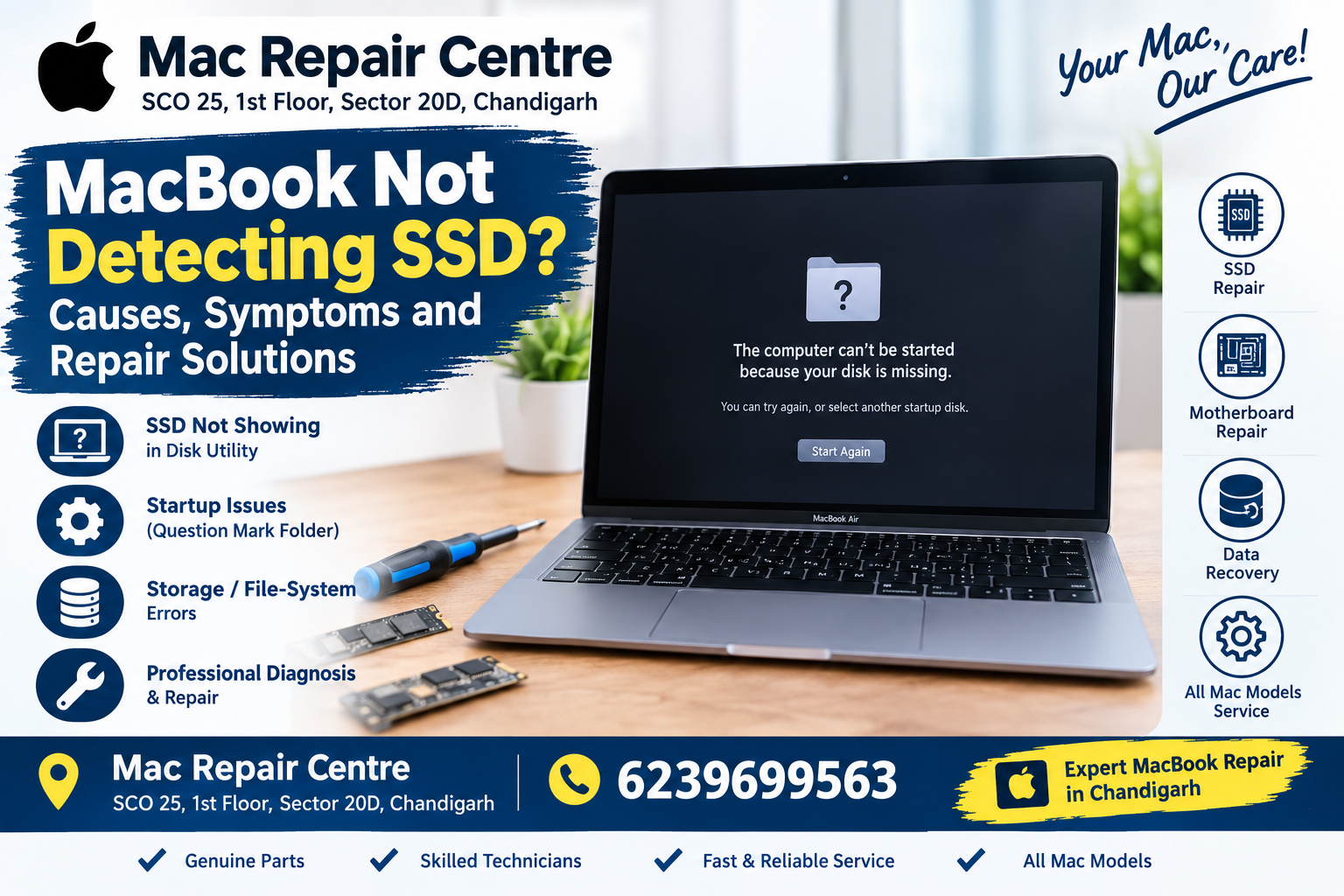
MacBook Not Detecting SSD: Causes, Symptoms, and Repair Solutions
SEO Title: MacBook Not Detecting SSD? Causes and Repair Solutions
Meta Description: Is your MacBook not detecting its SSD? Discover common causes, troubleshooting tips, data recovery precautions, and MacBook SSD repair services in Chandigarh.
URL Slug: MacBook-not-detecting-SSD
Primary Keyword: MacBook not detecting SSD
Related Keywords: MacBook SSD not showing, MacBook storage problem, MacBook not booting, MacBook SSD repair Chandigarh, MacBook motherboard repair Chandigarh, MacBook data recovery, MacBook repair Chandigarh.
Introduction
A MacBook is designed to deliver reliable performance, whether you use it for business, education, office work, creative projects, or everyday tasks. However, when the internal storage suddenly stops appearing, your MacBook may become unable to start macOS or access important files.
You might see a folder with a question mark, an error during startup, a blank internal drive in Disk Utility, or a message stating that macOS cannot be installed on the selected disk. In some cases, the MacBook may turn on normally but fail to detect its expected storage.
If your MacBook is not detecting its SSD, the cause may be related to macOS, storage corruption, a connection issue on certain models, a faulty storage component, or a logic-board problem.
It is important to understand that not every MacBook uses a removable or replaceable SSD. Many newer MacBook models have storage chips soldered directly to the logic board, so the available repair options depend on the exact model.
In this guide, we explain the common reasons a MacBook may not detect its storage, what you can safely check at home, how to protect your data, and when to seek professional MacBook repair in Chandigarh.
1. What Does It Mean When a MacBook Cannot Detect Its SSD?
The SSD, or solid-state drive, stores the operating system, applications, settings, and personal files. When the storage is unavailable, the MacBook may not be able to load macOS.
There are several ways this problem can appear.
The MacBook Shows a Question Mark Folder
A folder containing a question mark generally indicates that the Mac cannot find a usable startup disk. This can happen if the expected startup disk is unavailable or macOS cannot be found.
It does not automatically mean the SSD has failed. The issue could involve the startup disk configuration, macOS installation, or the storage hardware.
The Internal Drive Is Missing From Disk Utility
Disk Utility allows users to view available storage devices and volumes. If the expected internal storage does not appear, the problem may be more serious than a normal startup setting.
Possible explanations include storage hardware failure, a logic-board issue, or another condition preventing the device from being detected.
The MacBook Cannot Install macOS
During macOS installation, the installer normally asks you to select a destination disk. If the expected internal disk is missing or cannot be selected, the cause may involve disk formatting, storage errors, hardware faults, or compatibility issues.
Do not immediately erase or reformat a disk if it contains important data.
The MacBook Starts Slowly or Freezes
Storage problems can sometimes cause slow startup, application freezes, repeated error messages, or unexpected shutdowns.
These symptoms are not specific to SSD failure. Memory pressure, software problems, overheating, and other hardware faults can produce similar behaviour.
2. Common Reasons a MacBook Is Not Detecting Its SSD
1. Corrupted macOS or Startup Files
A damaged macOS installation or corrupted startup files can prevent the system from starting normally.
This may happen after an interrupted update, unexpected shutdown, or software problem.
If the internal storage still appears in Disk Utility, the issue may be related to macOS rather than a completely failed SSD. However, storage errors should be ruled out before reinstalling the operating system.
2. SSD Hardware Failure
Like other electronic components, storage devices can develop faults. A failing SSD may become unstable, disappear intermittently, or stop responding.
Possible warning signs include repeated startup failures, storage-related errors, and files becoming inaccessible.
Some newer MacBooks use integrated storage chips rather than a separate removable SSD module. Repair options vary depending on the design and the nature of the failure.
3. Logic-Board Problems
The logic board manages communication between major internal components. A fault affecting the storage circuitry, power delivery, or related connections can prevent storage from being detected.
Liquid exposure, electrical damage, component failure, or physical impact may contribute to logic-board problems.
A missing SSD is not sufficient evidence to conclude that the logic board is defective. Proper diagnosis is necessary to identify the actual fault.
4. Liquid Damage
Water, tea, coffee, and other liquids can damage internal electronic components. Even if the MacBook initially works after a spill, corrosion or electrical problems may develop later.
Liquid damage can affect power circuits, storage-related components, and other areas of the logic board.
If liquid enters your MacBook, switch it off if safe, disconnect the charger, and do not repeatedly try to start it. Avoid using a hair dryer or placing the device in rice. Seek professional inspection.
5. Physical Damage
A MacBook that has been dropped or exposed to significant impact may develop internal damage.
Depending on the model and the impact, this could affect the logic board, storage-related components, or other internal connections.
If the storage problem begins immediately after a fall, mention the incident to the technician.
6. Firmware or Recovery Problems
A MacBook may occasionally encounter startup or recovery-related problems that prevent it from booting normally.
Apple silicon and Intel-based models use different recovery and startup procedures. The appropriate troubleshooting method therefore depends on the MacBook model and macOS version.
Firmware-related problems should not be assumed without evidence, especially when the internal drive is completely absent from storage utilities.
7. Storage Errors or File-System Corruption
Sometimes the physical storage device is detected, but the volume or file system is damaged.
In such cases, Disk Utility may show a device or volume that cannot be mounted normally.
This situation differs from the storage device not appearing at all. The distinction matters because recovery options and potential risks can vary.
3. How to Check Whether Your MacBook Detects Its Internal Storage
Before arranging a repair, you can perform a few basic checks if the MacBook is stable and there is no suspected liquid or electrical damage.
Step 1: Enter macOS Recovery
macOS Recovery provides tools for troubleshooting startup problems and accessing Disk Utility.
For Apple silicon MacBooks:
Shut down the MacBook.
Press and hold the power button until startup options appear.
Select Options.
Follow the prompts to enter macOS Recovery.
For Intel-based MacBooks:
Turn on or restart the MacBook.
Immediately hold Command (⌘) + R.
Release the keys when the Apple logo or recovery screen appears.
The exact process can vary depending on the model, keyboard, and system condition.
Step 2: Open Disk Utility
In macOS Recovery, open Disk Utility.
If the expected internal drive does not appear, check the View menu and select the option to show all devices, where available.
Look carefully for the internal storage device and its associated volumes.
If the drive appears, note its name and any errors displayed. Do not erase or partition it if you need the files stored on it.
Step 3: Determine Whether the Device or Only the Volume Is Missing
There is an important difference between a physical storage device not appearing and a volume not mounting.
Device missing: A hardware, communication, power, or other detection issue may be involved.
Device visible but volume unavailable: File-system corruption, volume problems, or other software and hardware issues may be responsible.
Drive visible but startup fails: macOS, startup configuration, or storage integrity may need further investigation.
These observations can help narrow the problem, but they do not replace a complete diagnosis.
Step 4: Stop if Important Data Is at Risk
If the MacBook contains important business documents, photos, customer records, or other irreplaceable files, avoid experimenting with destructive repair options.
Do not erase the disk, repartition it, or repeatedly reinstall macOS without understanding the risks.
If the drive is failing or the data is especially valuable, consult a specialist before continuing.
4. Can You Fix a MacBook SSD Problem at Home?
Some storage-related startup problems can be resolved without hardware repair. Others require specialist diagnosis.
Check the Startup Disk
If the internal drive is visible and macOS can access it, check whether the correct startup disk is selected in System Settings or through the available startup options.
This step is relevant when the disk exists but the MacBook is not selecting it correctly.
Use Disk Utility Carefully
If the storage device and volume appear, Disk Utility's First Aid feature may help identify or repair certain file-system issues.
However, First Aid is not a universal solution for a failing SSD or logic-board fault.
If the files are important and the storage is unstable, consider data recovery before attempting repairs that write to the disk.
Consider macOS Reinstallation Only When Appropriate
Reinstalling macOS may help if the storage is detected and the problem involves the operating system.
It is not a reliable fix for a physically defective storage device or a logic-board fault.
Before proceeding, ensure you understand which installation option you are choosing, whether a backup exists, and how the process could affect your files.
Avoid Unnecessary Hardware Disassembly
MacBook internal construction differs between models. Some have integrated storage and tightly packed components, making casual disassembly risky.
Opening the device without suitable tools and experience can damage cables, connectors, the battery, or the logic board.
If the internal storage is missing completely, professional diagnosis is usually more appropriate than attempting to replace parts at random.
5. Is the SSD Replaceable in Every MacBook?
No. The repair options depend on the specific model.
Older MacBook Models
Some older MacBooks use a separate storage module that may be removable and replaceable.
Compatibility, connector type, firmware requirements, and available parts must be checked before selecting a replacement.
MacBook Air and MacBook Pro With Apple Silicon
Many Apple silicon MacBooks use storage chips soldered directly to the logic board rather than a conventional removable SSD.
In these models, replacing an ordinary plug-in SSD is generally not an option. Depending on the fault, repair may involve specialist logic-board work or replacement of a larger assembly.
Storage architecture also affects data recovery. A replacement component does not necessarily restore access to the files on the original hardware.
Why Model Identification Matters
Before estimating a repair or ordering parts, identify the exact MacBook model and year.
The model information helps determine the storage design, compatible parts, diagnostic procedures, and likely repair options.
This is especially important when comparing repair prices for different generations of MacBook Air and MacBook Pro.
6. What Happens to Your Data When the SSD Is Not Detected?
Data safety should be a priority whenever a MacBook has a storage problem.
If the storage device has failed, files may be inaccessible even if the MacBook itself can still power on.
If the problem involves macOS or a volume issue, the files may still be present, but the system may be unable to access them normally.
The correct approach depends on the underlying fault.
If You Have a Backup
If your files are backed up using Time Machine or another reliable method, recovery may be easier after the hardware or operating system problem is resolved.
Before restoring data, confirm that the MacBook is stable and that the storage system is functioning correctly.
If You Do Not Have a Backup
Tell the repair technician that data preservation is important before authorising work.
Avoid erasing the disk, performing unnecessary reinstalls, or attempting repeated repair procedures when the storage may be failing.
Can Data Be Recovered From a Failed MacBook?
Sometimes, but recovery is not guaranteed.
The chances depend on the nature of the failure, the condition of the storage components, encryption, and the MacBook's hardware architecture.
Modern MacBooks may use integrated storage and hardware-backed encryption. In some cases, repairing the original logic board or its associated components may be necessary to regain access to the data.
A reputable technician should explain the limitations and risks before proceeding.
7. How Much Does MacBook SSD Repair Cost?
There is no universal price for a MacBook that does not detect its SSD.
The cost depends on the exact model, the fault, parts availability, diagnostic requirements, and whether the repair involves software, storage hardware, or the logic board.
For example:
A startup configuration issue may require relatively simple troubleshooting.
A file-system problem may require software-level work.
A replaceable SSD may be repairable with a compatible storage module.
A soldered-storage MacBook may require specialist logic-board repair or a different repair approach.
A liquid-damaged device may need additional inspection and component-level work.
Before approving a repair, ask for the diagnosis, the estimated cost, the expected turnaround time, and any applicable warranty.
If data recovery is required, ask whether it is included in the quote or treated as a separate service.
A repair estimate should be based on the actual fault rather than the symptom alone.
8. Signs You Should Seek Professional MacBook Repair
Consider professional inspection if:
The internal storage is missing from Disk Utility.
Your MacBook repeatedly displays a question mark folder.
macOS cannot find a startup disk.
The device freezes or shuts down during startup.
The storage appears intermittently.
Disk Utility reports persistent errors.
The problem began after a liquid spill or physical impact.
Your files are important and you do not have a backup.
A technician can examine the symptoms, review the available diagnostics, and determine whether the problem is software-related, storage-related, or associated with the logic board.
If liquid damage or electrical damage is suspected, avoid repeated power-on attempts.
9. How to Prevent Future Storage Problems
Although no storage device is completely immune to failure, good practices can help protect your files and reduce avoidable problems.
Maintain Regular Backups
Use Time Machine or another reliable backup solution. Check periodically that your backups complete successfully and that important files can be restored.
A backup stored separately from the MacBook is especially valuable if the device is lost, damaged, or becomes unable to start.
Keep macOS Updated
Install suitable system updates when practical. Before major updates, make sure you have a current backup and sufficient available storage.
Avoid Interrupting Updates
Do not intentionally force a shutdown during an operating-system update. If the MacBook appears stuck for an unusually long period, consult appropriate troubleshooting guidance before taking further action.
Protect Your MacBook From Liquids and Impact
Use the device on a stable surface and keep drinks away from it. A protective case may help with some everyday knocks, although it cannot eliminate the risk of damage.
Monitor Unusual Behaviour
Repeated freezes, unexplained startup errors, and intermittent storage problems deserve attention. Back up important files promptly if the device is still accessible.
10. MacBook SSD and Motherboard Repair in Chandigarh
If your MacBook is not detecting its internal storage, choosing the right repair service begins with accurate diagnosis.
Mac Repair Centre, located in Sector 20D, Chandigarh, provides MacBook repair services for customers experiencing different hardware and software problems.
Depending on the model and the fault, enquiries may include:
MacBook not booting.
Internal storage not appearing.
SSD-related diagnostic issues.
MacBook motherboard and logic-board problems.
Startup and macOS errors.
Liquid-damage assessment.
Data recovery enquiries.
The suitable repair depends on the condition of the device, its storage design, and the results of testing.
When contacting a repair centre, share your MacBook model, the exact startup message, whether the internal drive appears in Disk Utility, and whether you have important files that need to be preserved.
Mac Repair Centre
Address: SCO 25, 1st Floor, Sector 20D, Chandigarh
Contact Number: 6239699563
Contact the centre to enquire about your MacBook's symptoms and available diagnostic and repair options.
Frequently Asked Questions
1. Why is my MacBook not detecting its SSD?
Possible causes include macOS problems, storage-device failure, file-system corruption, logic-board faults, liquid damage, or a power-related issue. The actual cause requires diagnosis.
2. Does a question mark folder mean my SSD is damaged?
Not necessarily. The symbol indicates that the Mac cannot find a usable startup disk. Software, startup configuration, or hardware problems may be responsible.
3. Can I recover files if my MacBook SSD is not detected?
Recovery may be possible, depending on the fault and model. If the files are important, avoid erasing the disk or performing unnecessary reinstallations before seeking advice.
4. Can I replace the SSD in a MacBook Air M1?
The MacBook Air M1 uses integrated storage rather than a conventional removable SSD module. Repair options depend on the fault and may involve specialist logic-board work.
5. Should I erase the disk if it does not appear?
No. If the disk is missing, erasing is not a solution. If it contains important data, avoid destructive operations and seek professional advice.
6. Can reinstalling macOS fix an SSD problem?
It may help when the storage is detected and the issue is software-related. It will not fix every hardware failure, and the process can affect data depending on the option selected.
7. Is motherboard repair necessary when the SSD is missing?
Not always. The problem could involve software, storage hardware, or other components. Testing should identify the cause before a repair is recommended.
8. How much does MacBook SSD repair cost in Chandigarh?
The price depends on the model, storage architecture, fault, parts availability, and repair method. An inspection is needed for a meaningful estimate.
9. Why does my MacBook SSD appear sometimes and disappear at other times?
Intermittent detection may indicate a hardware, power, connection, or system-level problem. Back up important files if possible and seek diagnosis if the behaviour continues.
10. Where can I get MacBook storage problems checked in Chandigarh?
You can contact Mac Repair Centre at SCO 25, 1st Floor, Sector 20D, Chandigarh, on 6239699563 to enquire about MacBook storage diagnostics and repair services.
Conclusion
A MacBook that cannot detect its SSD may have a software issue, storage fault, file-system problem, liquid damage, or logic-board defect. The most important step is to determine whether the physical storage is missing, the volume is unavailable, or macOS simply cannot start from it.
Begin with non-destructive checks and protect your data before attempting major repairs. Avoid erasing the disk or reinstalling macOS without understanding the risks, particularly if you do not have a backup.
If the internal storage remains missing or your MacBook repeatedly fails to start, professional diagnosis can help identify the available repair options.
For MacBook SSD and motherboard repair enquiries in Chandigarh, contact Mac Repair Centre, SCO 25, 1st Floor, Sector 20D, Chandigarh — 6239699563.
Disclaimer: Repair options vary by MacBook model and fault. This article provides general information and is not a substitute for a professional diagnosis.