MacBook Keyboard Not Working Guide
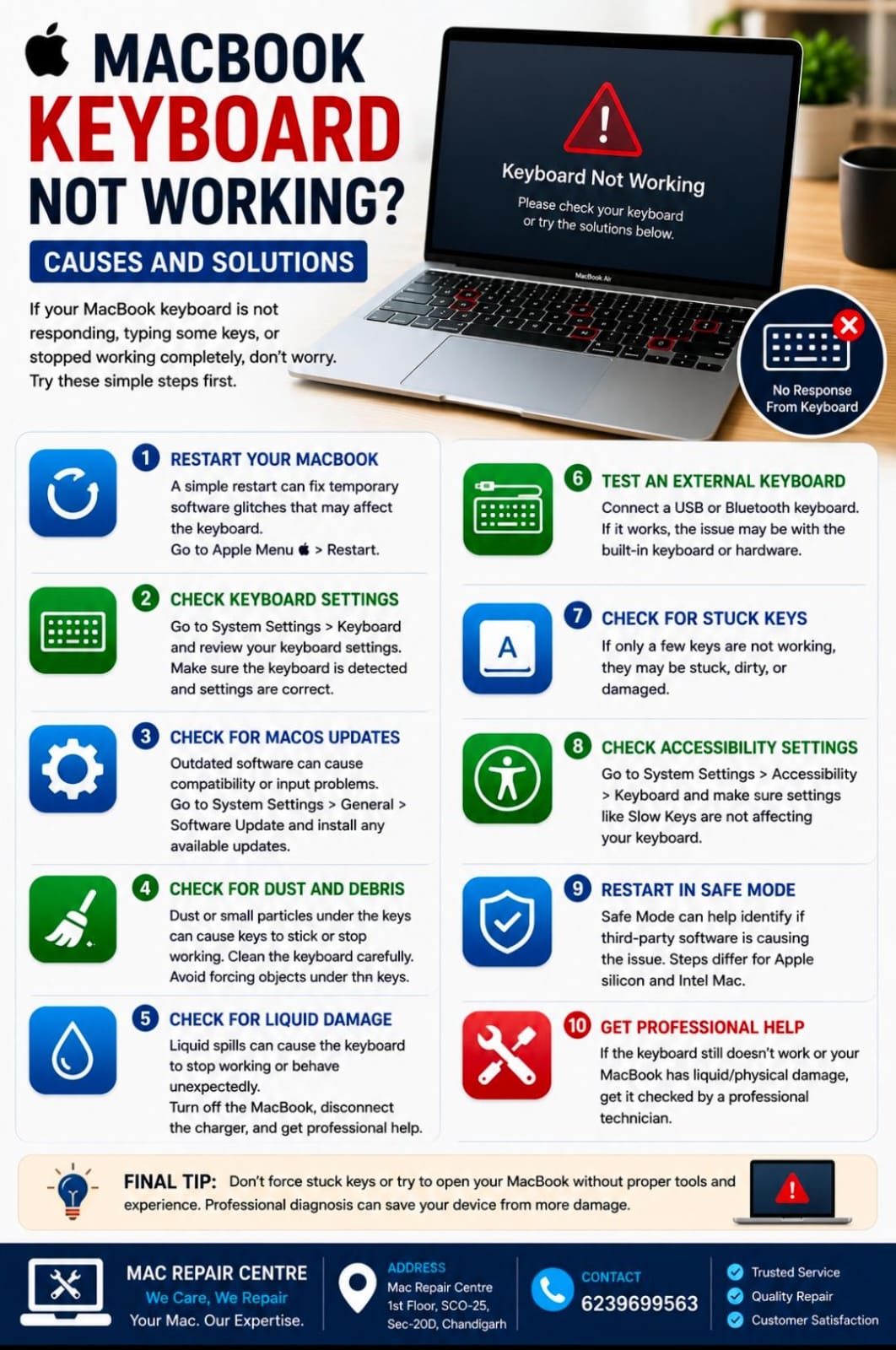
MacBook Keyboard Not Working? Causes and Solutions
A MacBook keyboard that suddenly stops working can be frustrating, especially when you need your device for work or study. The problem may be caused by software issues, dust, settings, liquid damage, or a hardware fault.
Here are some simple troubleshooting steps you can try.
1. Restart Your MacBook
A simple restart can fix temporary software glitches that may affect the keyboard.
Go to Apple Menu → Restart and check whether the keyboard works normally after restarting.
2. Check Keyboard Settings
Go to System Settings → Keyboard and review your keyboard settings. Make sure the keyboard is detected and the relevant settings are configured correctly.
3. Check for macOS Updates
Outdated software can sometimes cause compatibility or input problems.
Go to Apple Menu → System Settings → General → Software Update and install any available compatible updates.
4. Check for Dust and Debris
Dust or small particles underneath the keys can cause individual keys to become stuck or unresponsive. Clean the keyboard carefully using appropriate cleaning methods.
Avoid forcing objects underneath the keys, as this can cause further damage.
5. Check for Liquid Damage
If your MacBook has recently been exposed to water, coffee, or another liquid, the keyboard may stop working or behave unexpectedly.
Important: Turn off the MacBook, disconnect the charger, and get professional assistance. Avoid repeatedly turning it on to test it.
6. Test an External Keyboard
Connect a compatible external keyboard. If the external keyboard works while the built-in keyboard does not, the issue may be related to the MacBook's built-in keyboard or hardware.
7. Check for Stuck or Unresponsive Keys
If only a few keys are not working, the problem may be caused by debris, physical damage, or a faulty keyboard component.
8. Check Accessibility Settings
Go to System Settings → Accessibility → Keyboard and make sure settings such as Slow Keys or other accessibility features aren't affecting how your keyboard responds.
9. Restart in Safe Mode
Safe Mode can help determine whether software that loads during startup is causing the problem. The steps vary depending on whether your Mac has Apple silicon or an Intel processor.
10. Get Professional Help
If the keyboard still doesn't work after basic troubleshooting—or if the MacBook has suffered liquid damage, physical damage, or multiple keys have stopped working—it is best to have it professionally diagnosed.
A technician can check the keyboard, internal connections, logic board, and other components to identify the actual cause.
Final Tip
Don't force stuck keys or attempt to open the MacBook without the proper tools and experience. Professional diagnosis can help prevent additional damage and ensure the correct repair.
Mac Repair Centre
1st Floor, SCO-25, Sec-20D, Chandigarh
📞 6239699563