How to Protect Your MacBook From Damage : Guide
How to Protect Your MacBook from Damage: Essential Tips
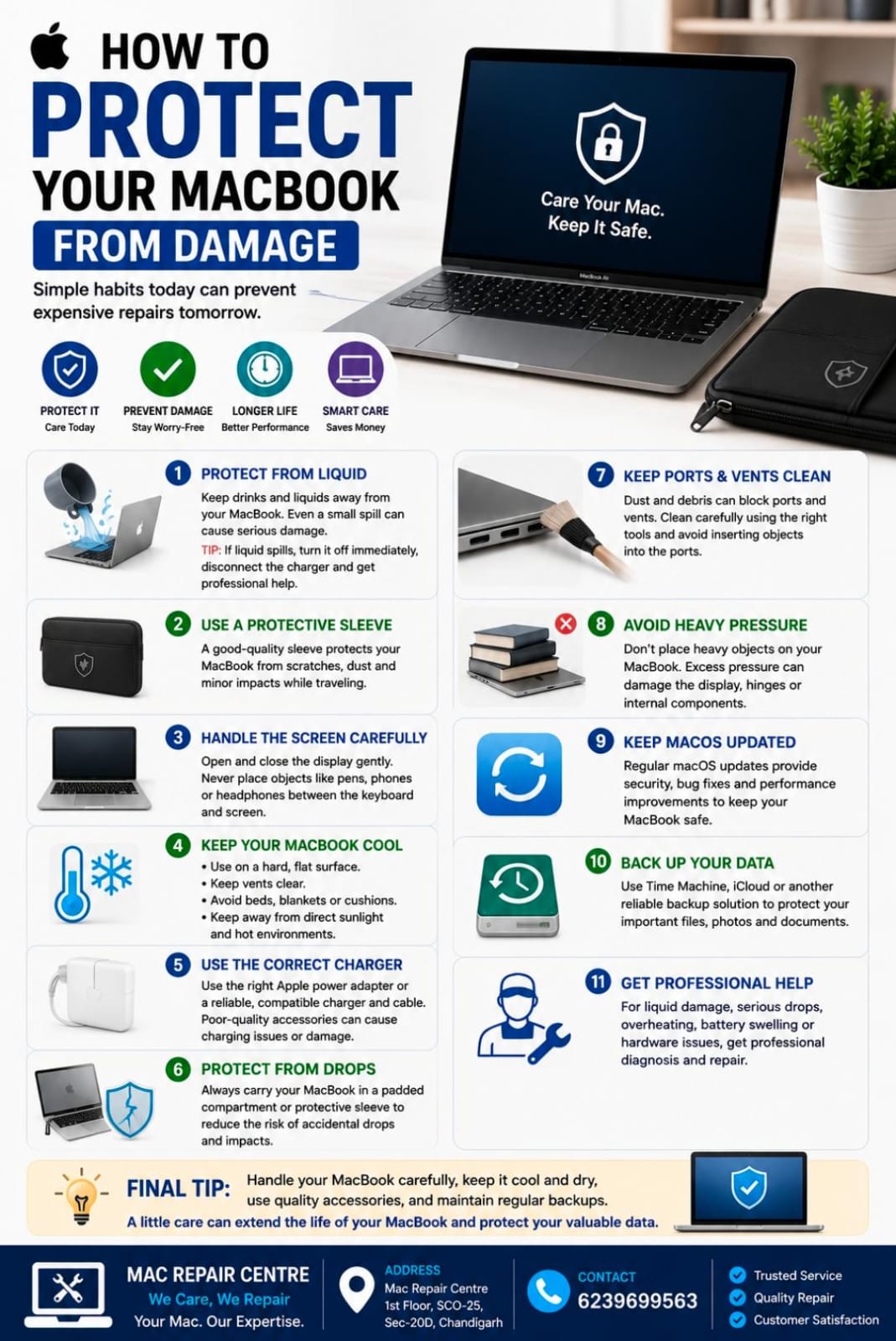
A MacBook is a valuable device, and proper care can help prevent physical damage, overheating, liquid accidents, and battery problems. With a few simple habits, you can keep your MacBook safe and working reliably for longer.
1. Protect Your MacBook from Liquid
Keep drinks and liquids away from your MacBook. Even a small spill can damage internal components.
Tip: If liquid spills on your MacBook, turn it off immediately, disconnect the charger, and seek professional assistance. Avoid turning it back on to “check” if it works.
2. Use a Protective Sleeve
A good-quality MacBook sleeve can protect your device from scratches, dust, and minor impacts when carrying it outside.
3. Handle the Screen Carefully
Always open and close the display gently. Avoid placing objects such as pens, phones, or headphones between the keyboard and screen.
4. Keep Your MacBook Cool
Excessive heat can affect internal components and battery performance.
Use your MacBook on a hard, flat surface.
Keep ventilation areas clear.
Avoid using it on beds, blankets, or cushions.
Keep it away from direct sunlight and very hot environments.
5. Use the Correct Charger
Use the appropriate Apple power adapter or a reliable, compatible charger and cable. Poor-quality charging accessories can cause charging problems or damage.
6. Protect Your MacBook from Drops
Avoid carrying your MacBook loosely in a bag. Use a padded compartment or protective sleeve to reduce the risk of damage from accidental drops and impacts.
7. Keep Ports and Vents Clean
Dust and debris can accumulate around ports and ventilation areas. Clean them carefully using appropriate methods and avoid forcing objects into the ports.
8. Avoid Heavy Pressure on the MacBook
Don't place heavy objects on top of your MacBook. Excessive pressure can damage the display, hinges, or internal components.
9. Keep macOS Updated
Regular macOS updates provide security improvements, bug fixes, and compatibility enhancements that help keep your MacBook running safely.
10. Back Up Your Important Data
Physical protection cannot prevent every type of failure. Use Time Machine, iCloud, or another reliable backup solution to protect important documents, photos, and other files.
11. Get Professional Help When Needed
If your MacBook has suffered liquid damage, a serious drop, overheating, display problems, battery swelling, or repeated hardware issues, avoid unnecessary DIY repairs. Professional diagnosis can help prevent further damage.
Final Tip
Handle your MacBook carefully, keep it cool and dry, use quality accessories, and maintain regular backups. A little care can help extend the life of your MacBook and protect your valuable data.
Mac Repair Centre
1st Floor, SCO-25, Sec-20D, Chandigarh
📞 6239699563