How To Make Your MacBook Faster Guide
How to Make Your MacBook Faster: Easy Tips
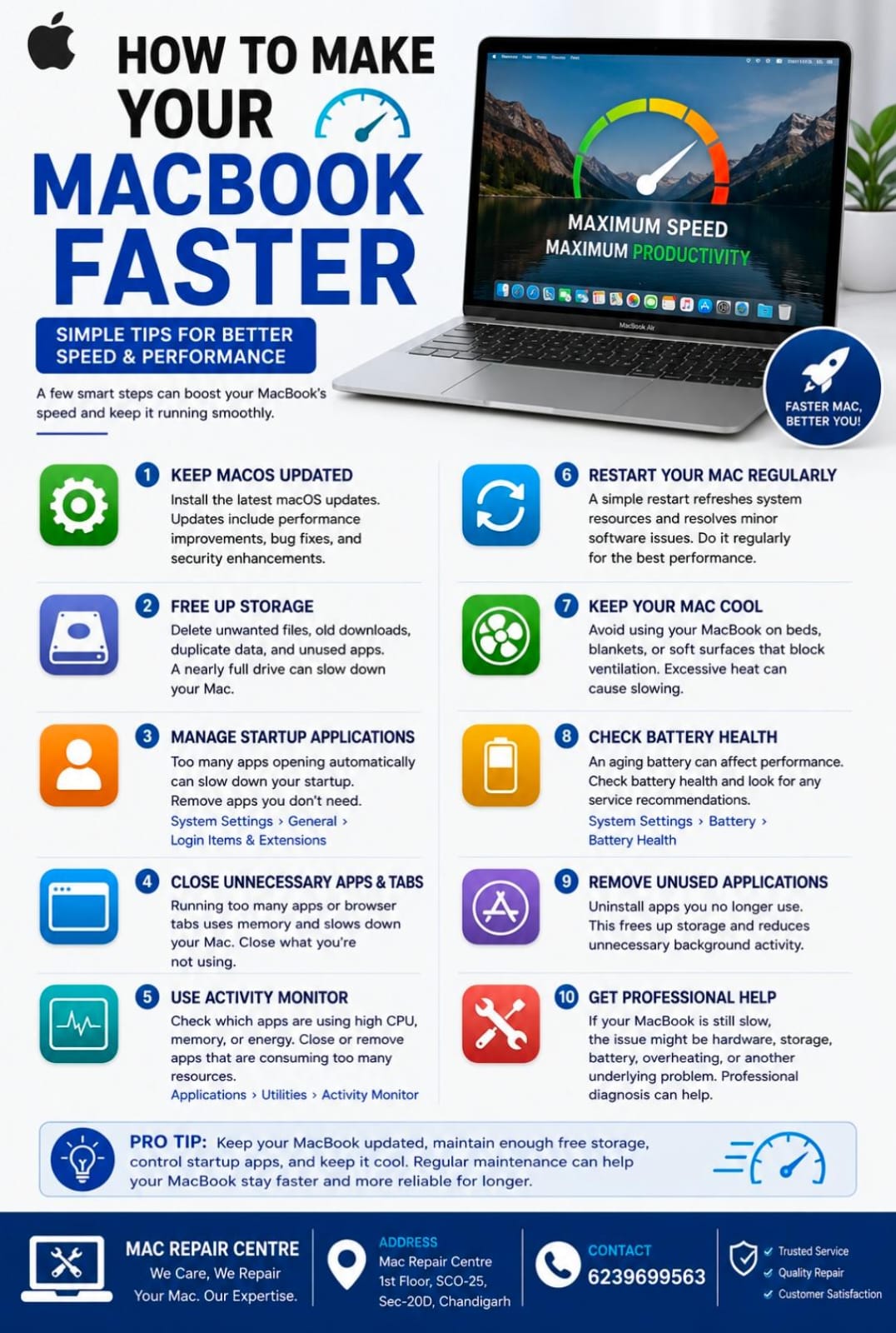
Is your MacBook running slower than usual? Over time, unnecessary files, too many startup applications, outdated software, and limited storage can affect performance. The good news is that you can improve your MacBook’s speed with a few simple steps.
1. Keep macOS Updated
Install the latest compatible macOS updates. Updates often include performance improvements, bug fixes, and security enhancements.
2. Free Up Storage
A nearly full drive can affect your Mac’s performance. Delete unwanted files, old downloads, duplicate data, and unused applications.
Go to Apple Menu → System Settings → General → Storage to see what is using your space.
3. Manage Startup Applications
Too many applications opening automatically can make your Mac take longer to start.
Go to System Settings → General → Login Items & Extensions and remove apps you don't need at startup.
4. Close Unnecessary Apps and Tabs
Running many applications or browser tabs at the same time can consume memory and processing power. Close apps and tabs you aren't using.
5. Use Activity Monitor
Activity Monitor helps you identify apps using excessive CPU, memory, energy, or other system resources. If an application is unusually demanding, consider closing it or investigating the issue.
6. Restart Your Mac Regularly
A simple restart can refresh system resources and resolve minor software issues. Restarting can be especially helpful when your Mac has been running for a long time.
7. Keep Your Mac Cool
Avoid using your MacBook on beds, blankets, or other surfaces that block ventilation. Excessive heat can cause the system to slow down.
8. Check Your Battery Health
An aging or unhealthy battery can affect your MacBook experience. Check System Settings → Battery → Battery Health and look for any service recommendations.
9. Remove Unused Applications
Uninstall applications you no longer use. This can free storage and reduce unnecessary background activity.
10. Get Professional Help
If your MacBook is still slow after basic maintenance, the problem could be related to hardware, storage, battery health, overheating, or another underlying issue. Professional diagnosis can help identify the real cause.
Final Tip
Keep your MacBook updated, maintain enough free storage, control startup apps, and keep it cool. Regular maintenance can help your MacBook stay faster and more reliable for longer.
Mac Repair Centre
1st Floor, SCO-25, Sec-20D, Chandigarh
📞 6239699563