How to Backup Your Mac Using Time Machine Guide
How to Back Up Your Mac Using Time Machine
Your Mac contains important photos, documents, videos, work files, and personal data. A regular backup can protect your information if your Mac is lost, damaged, or has a hardware or software problem.
Time Machine is Apple’s built-in backup feature that can automatically back up your Mac to an external storage device.
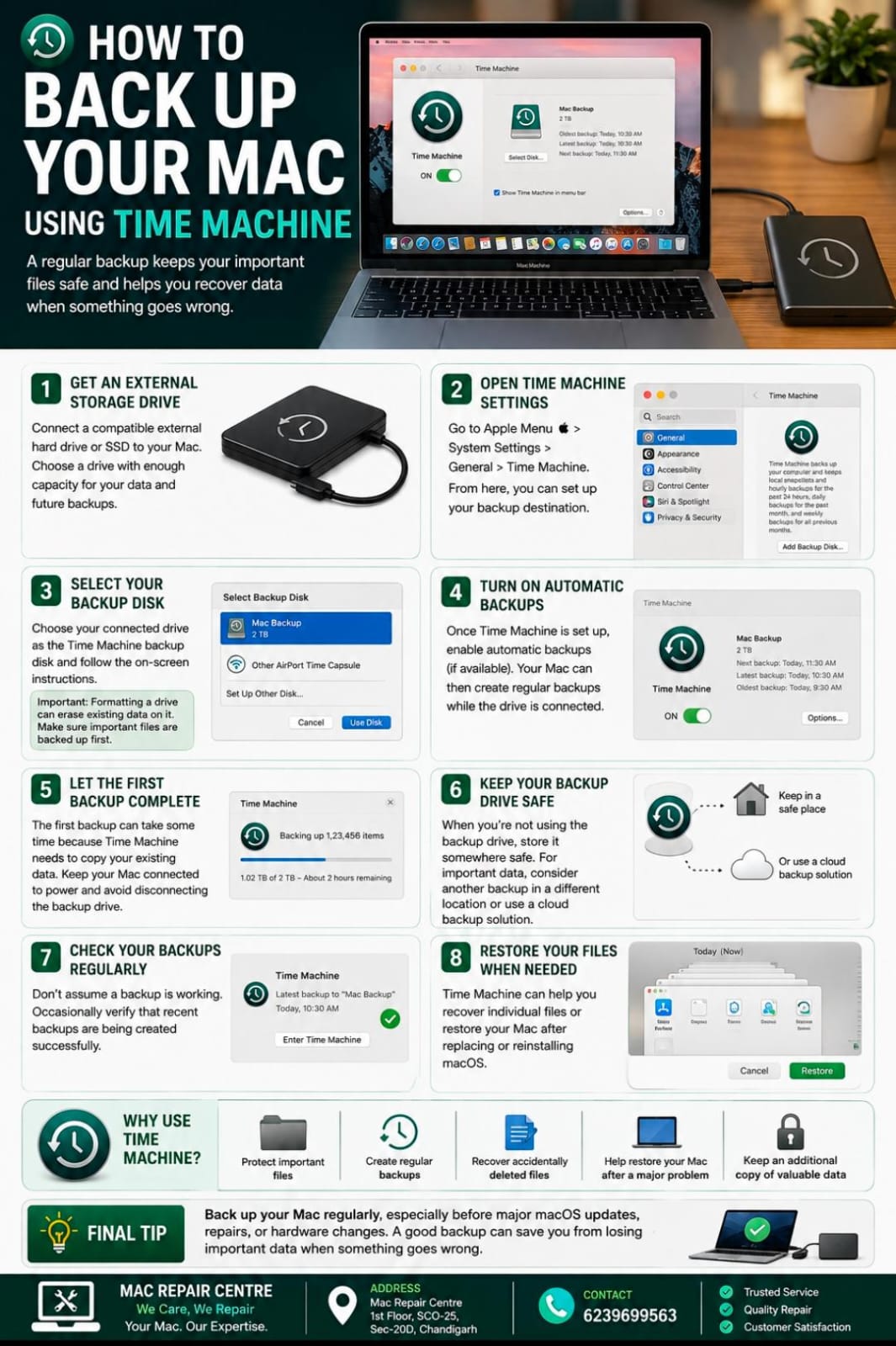
1. Get an External Storage Drive
Connect a compatible external hard drive or SSD to your Mac. Ideally, choose a drive with enough capacity to store your Mac’s data and future backups.
2. Open Time Machine Settings
Go to:
Apple Menu → System Settings → General → Time Machine
From here, you can set up your backup destination.
3. Select Your Backup Disk
Choose your connected external drive as the Time Machine backup disk and follow the on-screen instructions.
Depending on your macOS version, you may need to erase or format the drive before using it for Time Machine.
Important: Formatting a drive can erase existing data on it, so make sure important files are backed up first.
4. Turn On Automatic Backups
Once Time Machine is configured, enable automatic backups if the option is available. Your Mac can then create regular backups while the backup drive is connected.
5. Let the First Backup Complete
The first backup can take some time because Time Machine needs to copy your existing data. Keep your Mac connected to power and avoid disconnecting the backup drive during the process.
6. Keep Your Backup Drive Safe
When you're not using the backup drive, store it somewhere safe. For important data, consider maintaining another backup in a separate location or using a reliable cloud backup solution.
7. Check Your Backups Regularly
Don't assume a backup is working—occasionally verify that recent backups are being created successfully.
8. Restore Your Files When Needed
Time Machine can help you recover individual files or restore information after replacing or reinstalling your Mac.
Why Use Time Machine?
💾 Protect important files
🔄 Create regular backups
🛠️ Recover accidentally deleted files
💻 Help restore your Mac after a major problem
🔐 Keep an additional copy of valuable data
Final Tip
Back up your Mac regularly, especially before major macOS updates, repairs, or hardware changes. A good backup can save you from losing important data when something goes wrong.
Mac Repair Centre
1st Floor, SCO-25, Sec-20D, Chandigarh
📞 6239699563