15 Essential MacBook Tips and Tricks Every Mac User Should Know

15 Essential MacBook Tips and Tricks Every Mac User Should Know
Introduction
MacBooks are known for their excellent performance, premium design, smooth operating system, and long-lasting reliability. Whether you use a MacBook Air or MacBook Pro for office work, business, studies, video editing, or everyday tasks, knowing the right tips and tricks can make your experience much better.
However, many Mac users only use basic features and miss out on several useful tools that can save time, improve productivity, and help maintain their devices.
In this guide, we will explore 15 essential MacBook tips and tricks that every user should know. These tips will help you work smarter, keep your Mac running smoothly, and avoid common problems.
1. Learn Useful Mac Keyboard Shortcuts
Keyboard shortcuts are one of the easiest ways to save time on a MacBook. Instead of using your mouse for every task, you can perform many actions instantly using a few keys.
Some useful shortcuts include:
Command + C: Copy selected text or files.
Command + V: Paste copied content.
Command + X: Cut selected text.
Command + Z: Undo the previous action.
Command + Space: Open Spotlight Search.
Command + Tab: Switch between open applications.
Command + Shift + 3: Capture the entire screen.
Command + Shift + 4: Capture a selected area.
Command + Q: Quit an application.
Learning these shortcuts can make everyday MacBook tasks faster and easier.
2. Keep Your macOS Updated
Apple regularly releases macOS updates to improve system performance, introduce new features, fix software bugs, and address security vulnerabilities.
Running an outdated macOS version may sometimes cause application compatibility problems or expose your Mac to known security issues.
To check for updates:
Open the Apple menu.
Select System Settings.
Click General.
Select Software Update.
Install available updates after checking compatibility and backing up important data.
Keeping your Mac updated is an important part of maintaining its performance and security.
3. Manage Your MacBook Storage
Low storage space can affect your MacBook's performance and prevent you from installing applications or downloading important files.
To check your available storage:
Open System Settings.
Select General.
Click Storage.
Review the categories using your disk space.
You can remove unnecessary downloads, old installation files, duplicate documents, and applications you no longer use.
Before deleting anything, make sure your important files are backed up.
4. Improve MacBook Battery Life
Battery performance is important, especially for people who travel or work away from their desks.
Here are some useful battery-saving tips:
Reduce screen brightness when possible.
Turn on Low Power Mode when needed.
Close applications you are not using.
Disconnect unnecessary external accessories.
Avoid keeping too many background applications active.
Check which applications are consuming significant energy.
You can also check your battery condition under System Settings > Battery.
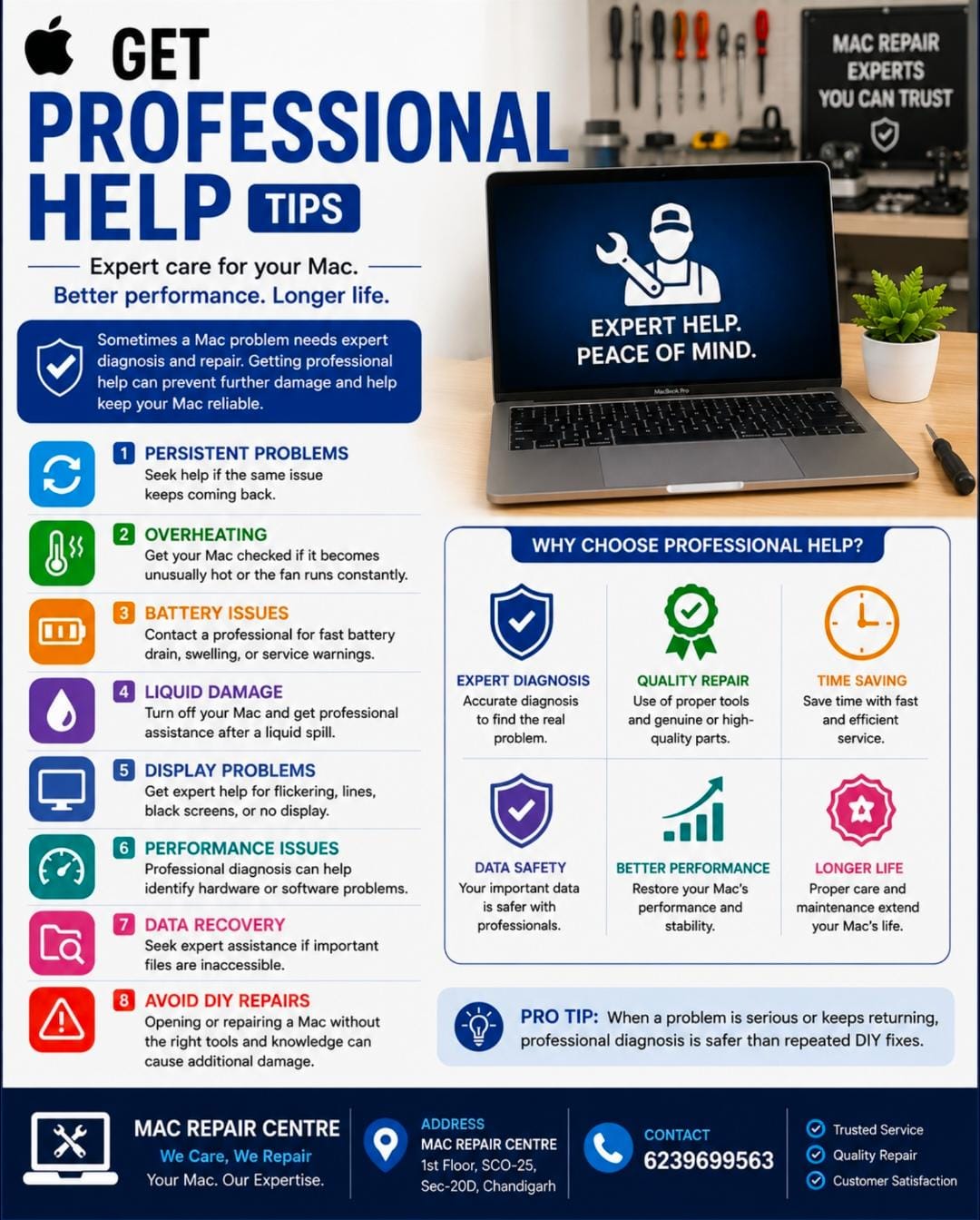
If your MacBook battery drains unusually quickly, shuts down unexpectedly, or shows a service warning, professional inspection may be necessary.
5. Use Activity Monitor to Find Slow Applications
Sometimes a MacBook becomes slow because one application is using too much CPU, memory, or energy.
Activity Monitor helps you identify these applications.
To open it:
Open Finder.
Go to Applications.
Open Utilities.
Select Activity Monitor.
Check the CPU, Memory, Energy, and Disk tabs.
If an application is consuming excessive resources, save your work and close it if necessary.
This simple tool can help you understand why your Mac is running slowly.
6. Use Spotlight Search for Faster Work
Spotlight Search is one of the most useful macOS features.
Press Command + Space and type the name of an application, document, folder, or other searchable information.
You can use Spotlight to:
Open applications.
Find documents.
Search for files.
Perform calculations.
Find settings.
Look up definitions.
Instead of manually searching through folders, Spotlight helps you find things quickly.
7. Organise Your Desktop and Files
A cluttered desktop can make it difficult to find important documents.
macOS provides several tools to organise your files.
Use Stacks to automatically group similar desktop items together. Create separate folders for office documents, photographs, videos, downloads, and personal files.
You can also use Finder tags to identify important files with different colours.
A clean desktop makes your MacBook easier to use and helps you stay organised.
8. Protect Your MacBook from Overheating
Overheating is a common issue that MacBook users may experience during heavy workloads.
Video editing, gaming, multiple browser tabs, and demanding applications can increase processor temperature.
To reduce unnecessary heat:
Use your MacBook on a hard, flat surface.
Avoid blocking the ventilation openings.
Keep macOS and applications updated.
Close unnecessary applications.
Avoid using your MacBook in extremely hot environments.
Keep the device clean.
If your MacBook frequently overheats, its fan makes unusual noise, or performance drops significantly, the cooling system may need professional inspection.
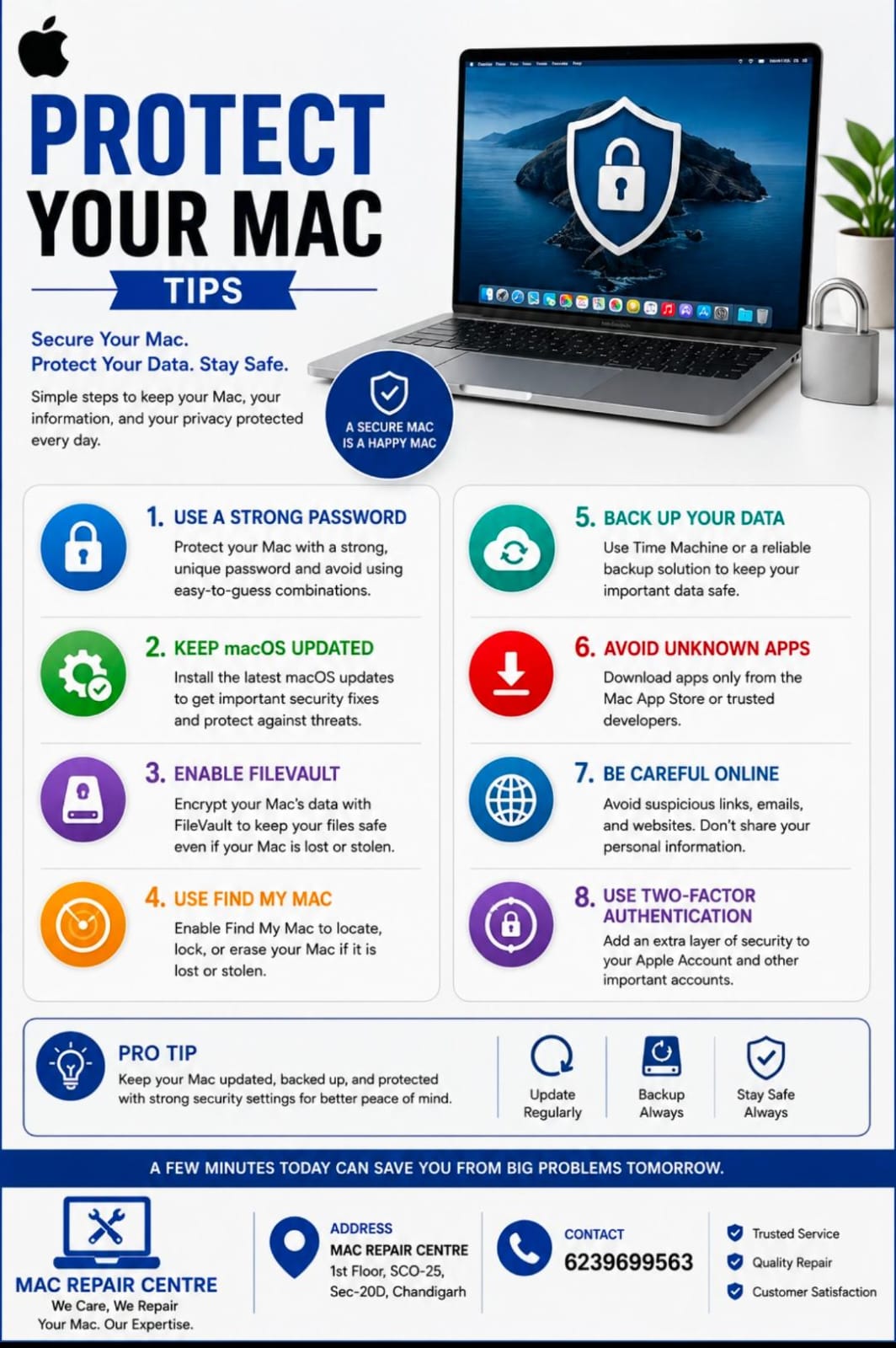
9. Use Time Machine for Data Backup
Your MacBook may contain important business documents, photographs, personal files, and other valuable information.
A hardware failure, accidental deletion, or software problem can result in data loss.
Time Machine is Apple's built-in backup feature.
You can connect a compatible external storage drive and configure Time Machine through System Settings.
Regular backups help you restore important files if something goes wrong.
Do not wait until your MacBook develops a problem before creating a backup.
10. Enable FileVault for Better Data Security
FileVault is a macOS security feature that encrypts the data stored on your Mac's startup disk.
This can help protect your personal and business information if your MacBook is lost or stolen.
To check FileVault:
Open System Settings.
Select Privacy & Security.
Find FileVault.
Follow the instructions to enable it if appropriate.
Keep your recovery information safe because losing access to your password and recovery options can make data recovery difficult.
11. Keep Your MacBook Keyboard and Screen Clean
Dust, fingerprints, and dirt can accumulate on your MacBook over time.
Proper cleaning helps maintain its appearance and prevents dirt from building up around the keyboard and display.
Follow these precautions:
Shut down your MacBook before cleaning.
Disconnect the charger and accessories.
Use a soft, lint-free microfiber cloth.
Avoid spraying liquid directly onto the display.
Do not use excessive pressure on the screen.
Follow Apple's recommended cleaning instructions.
Never use harsh chemicals or excessive moisture on your MacBook.
12. Check Battery Health Regularly
MacBook batteries are rechargeable lithium-ion batteries. Their capacity naturally decreases with charging cycles and age.
To check battery health:
Open System Settings.
Select Battery.
Open Battery Health.
Review the available condition information.
If your battery has significantly reduced capacity, professional battery replacement may help restore normal portability and usage time.
Do not ignore a swollen battery. Stop using the device and arrange a professional inspection.
13. Manage Startup Applications
Some applications automatically open when you turn on your MacBook.
Having too many startup applications can make the login process slower and use unnecessary system resources.
To manage them:
Open System Settings.
Select General.
Click Login Items & Extensions.
Review the applications that open at login.
Remove unnecessary items.
Only disable applications that you recognise and do not need to start automatically.
14. Use iCloud to Sync Your Important Files
iCloud makes it easier to access supported files and information across your Apple devices.
You can use it to sync documents, photographs, contacts, calendars, and other supported data.
To manage iCloud:
Open System Settings.
Click your Apple Account.
Select iCloud.
Review the available syncing options.
Make sure you understand which files are stored locally and which are synced to iCloud. iCloud syncing is useful, but it should not be treated as a complete replacement for an independent backup.
15. Know When Your MacBook Needs Professional Repair
Even with proper maintenance, MacBooks can sometimes develop hardware or software problems.
Some warning signs include:
MacBook not turning on.
Black screen or display flickering.
Battery draining unusually fast.
Keyboard or trackpad not responding.
Charging problems.
Liquid damage.
Unexpected shutdowns.
Overheating or fan noise.
Speaker or audio problems.
Slow performance despite adequate storage.
These problems may have different causes. A proper diagnosis is important before replacing any component.
Avoid opening your MacBook or attempting complicated motherboard repairs without the necessary tools and technical knowledge.
Bonus Tip: Restart Your MacBook Occasionally
Many users keep their MacBooks running for long periods without restarting them.
Restarting occasionally can help resolve temporary software issues and refresh system processes.
If your MacBook becomes unresponsive, try the appropriate restart procedure after considering any unsaved work.
Regular restarts are not a substitute for proper maintenance, but they can help with certain temporary problems.
Conclusion
Your MacBook is a powerful device, and a little knowledge can make a big difference in how you use it. From keyboard shortcuts and battery management to storage cleaning and data backups, these simple tips can help improve your daily experience.
Remember that regular maintenance, safe usage habits, and timely software updates are important for keeping your MacBook in good condition.
If your MacBook develops a hardware issue, unusual heating, display damage, battery problems, or motherboard faults, professional diagnosis can help identify the correct solution.
Need Professional MacBook Repair in Chandigarh?
Mac Repair Centre provides professional Apple laptop repair services, including:
MacBook Air and MacBook Pro repair
Internal screen replacement
Battery replacement
Keyboard and trackpad repair
Motherboard and logic board repair
Liquid damage repair
SSD upgrades and other hardware services
Mac Repair Centre
Address: SCO 25, 1st Floor, Sector 20D, Chandigarh
Contact: 6239699563
Website: https://macrepaircentre.in
Get your MacBook checked by experienced technicians and keep your Apple device working smoothly.
Frequently Asked Questions (FAQs)
1. How can I make my MacBook faster?
Remove unnecessary applications, manage startup items, maintain sufficient storage, update macOS, and check Activity Monitor for resource-heavy applications.
2. How often should I update my MacBook?
Check for macOS updates regularly and install suitable security and software updates after reviewing compatibility.
3. Why does my MacBook battery drain quickly?
Possible reasons include battery ageing, high screen brightness, demanding applications, background processes, and battery-related hardware issues.
4. Is it safe to use a MacBook while charging?
Yes. MacBooks are designed to operate while connected to their compatible chargers.
5. How can I check MacBook battery health?
Open System Settings, select Battery, and check Battery Health.
6. Why is my MacBook overheating?
Heavy workloads, blocked ventilation, dust accumulation, cooling system issues, and software problems can contribute to overheating.
7. Does restarting a MacBook improve performance?
Restarting can resolve certain temporary software problems and refresh system processes.
8. How can I protect my MacBook data?
Use regular Time Machine backups, strong account passwords, FileVault where appropriate, and secure storage practices.
9. When should I replace my MacBook battery?
Consider professional inspection when the battery shows a service warning, has poor capacity, drains unusually quickly, or becomes swollen.
10. Where can I get MacBook repair services in Chandigarh?
You can contact Mac Repair Centre at SCO 25, 1st Floor, Sector 20D, Chandigarh, for MacBook repair and hardware services. Call 6239699563